

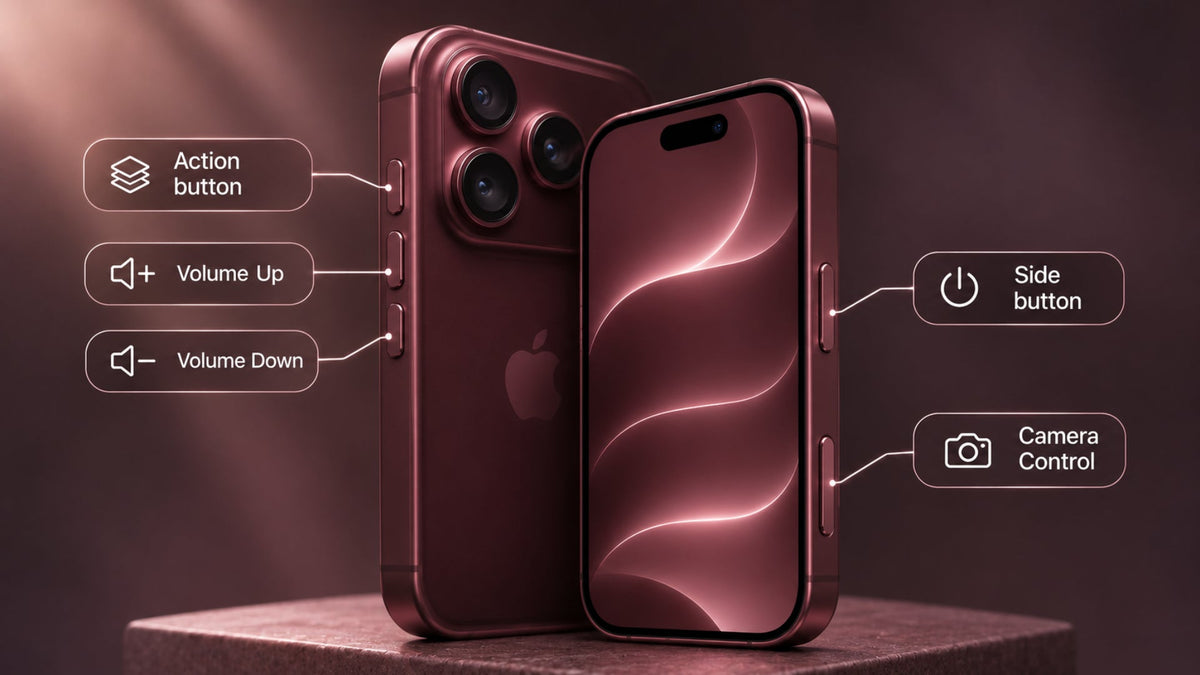
The iPhone 18 Pro buttons are the Action button, Volume Up, Volume Down, the Side button, and Camera Control. These five physical controls sit on the left and right sides of the phone. If you're coming from an older iPhone, it's easy to press the wrong one. Camera Control is the most likely to confuse you, because only the iPhone 16 and later models have it.
This guide covers where each button is, what it does, which button combinations to use, and how a case can change the way the buttons feel. Every function described here comes from Apple's official documentation, including Apple's guide to the iPhone side button, volume buttons, and other controls.
We'll start with where to find each button.
Where Are the Buttons Located on the iPhone 18 Pro?
The Action button and both volume buttons are on the left side of the iPhone 18 Pro. The Side button and Camera Control are on the right. On the left side, Apple's labeled diagram shows the SIM tray at the bottom, the volume buttons above it, and the Action button at the top. The SIM tray isn't available in all countries or regions, so your phone may not have one.
The table below shows each button, where it is, and its main job.
| Button | Location | Main function |
|---|---|---|
| Action button | Left side, above the volume buttons | Launches a feature or shortcut you choose |
| Volume Up | Left side | Raises volume |
| Volume Down | Left side | Lowers volume |
| Side button | Right side | Locks, wakes, and powers off the iPhone |
| Camera Control | Right side | Opens and controls the camera |
These directions assume you hold the phone with the screen facing you. In that position, the Action and volume buttons are under your left hand, and the Side button and Camera Control are under your right.
What Does Each iPhone 18 Pro Button Do?
Each button has one main job. The Action button and Camera Control also handle extra tasks that you can set up yourself.
What Does the Side Button Do?
The Side button locks your iPhone and wakes it again. Press it once to put the screen to sleep or turn it back on. Press and hold it to talk to Siri.
The Side button also turns the phone off and starts emergency calls. Hold it together with either volume button to bring up the power-off slider. If you keep holding until the Emergency SOS countdown ends, the iPhone calls emergency services. Let go once the slider appears if you only want to power off.
What Do the Volume Up and Volume Down Buttons Do?
The volume buttons raise and lower the sound for music, videos, and games. When you aren't using other apps, they change the ringer volume instead.
In the Camera app, pressing either volume button takes a photo, just like tapping the on-screen shutter. Volume Up also works with the Side button to take a screenshot. The button combinations section below explains how.
What Does the Action Button Do?
The Action button is a shortcut button that you can customize. Press and hold it to run the feature you've assigned. By default, it turns Silent Mode on or off.
Apple lists these options for the iPhone 18 Pro:
- Sound and focus: Silent Mode and Focus.
- Camera tools: Camera, Visual Intelligence, and Magnifier.
- Quick utilities: Flashlight, Voice Memo, Recognize Music, and Translate.
- Custom actions: Controls, Shortcut, and Accessibility. Choose Shortcut if you want the button to run one of your own shortcuts.
Pick the feature you reach for most. If you often record ideas while you're out, set the button to Voice Memo so you can start a recording without first unlocking and opening an app. You change the assigned action in the Settings app.
What Does Camera Control Do?
Camera Control opens the camera and lets you adjust a shot without touching the screen. It responds to several kinds of presses, as Apple's Camera Control guide explains:
- Click: Opens Camera. Click again to take a photo.
- Click and hold: Records video.
- Light double press: Opens an overlay of settings for the current camera mode. Slide your finger along the control to adjust Exposure, Depth, Zoom, Cameras, Styles, or Tone.
- Press and hold: Starts Visual Intelligence, according to Apple's controls guide.
Apple's two guides describe press and hold differently. The Camera Control guide uses click and hold to record video once Camera is open, while the controls guide links press and hold to Visual Intelligence. The result likely depends on whether Camera is already open. To choose whether a single or double click opens Camera, go to Settings > Camera > Camera Control.
How Do You Use the iPhone 18 Pro Buttons Together?
You use two iPhone 18 Pro buttons at once to take a screenshot, power off, and start Emergency SOS. Timing matters, because a quick press and a long hold on the same pair of buttons do different things.
This quick-reference table shows the most common combinations and single-button shortcuts.
| Button combination | What it does |
|---|---|
| Side button + Volume Up, then release | Takes a screenshot |
| Side button + either volume button, hold | Opens the power-off slider. Keep holding to reach the Emergency SOS countdown |
| Action button, press and hold | Runs its assigned feature |
| Camera Control, click | Opens the Camera app |
| Volume button while in Camera | Takes a photo |
Some of these results depend on your settings. Camera Control can open Camera with a single click or a double click, and the Action button runs whatever you've assigned to it. In Settings > Emergency SOS, you can turn on Call with Hold and Release or Call with 5 Button Presses, which changes how the buttons start an emergency call.
Screenshots also look different depending on your iOS version. On iOS 26 and later, the screenshot opens right away with quick tools to mark it up, crop it, share it, or save it. For a screenshot, press both buttons and release them quickly. To power off, keep holding until the slider appears.
Do iPhone 18 Pro Cases Cover or Change Button Access?
Yes, a case changes how the buttons feel. A good one protects the phone without making any of its five controls harder to use. Camera Control responds to light presses and finger slides as well as clicks, so you need to check button access more carefully on this phone than on one with simple push buttons.
Many people worry that a case will make the buttons stiff or hard to find by feel. Use this checklist to spot those problems before you buy:
- Button fit: Look for accurate cutouts or button covers that respond to a normal press.
- Easy reach: You should be able to find and press the Action button and Camera Control without changing your grip.
- Clear camera area: Nothing should block the camera controls or the lenses.
- Edge and corner cover: Raised edges and shock-absorbing corners help protect the phone during drops, while an iPhone 18 Pro screen protector adds protection directly over the display.
- MagSafe support: If you use a MagSafe charger or accessories, check that the case supports MagSafe and wireless charging. Case thickness and magnet alignment can also affect iPhone 18 Pro charging.

Cases handle buttons in one of two ways. Exposed cutouts leave each button open, so it feels the same as on a bare phone, but the case covers less of the edge. Integrated button covers sit over each button and pass your press through. They add edge protection, but they must line up exactly and feel responsive. With either design, check that light presses and finger slides on Camera Control still work.
A case made for another iPhone generation may not fit well, even when the phones look alike. Apple's iPhone 18 Pro tech specs list the same outer size as the iPhone 17 Pro, about 2.83 inches wide, 5.91 inches tall, and 0.34 inches thick. Cutouts and camera-area details can still differ, so choose a case listed for the iPhone 18 Pro.
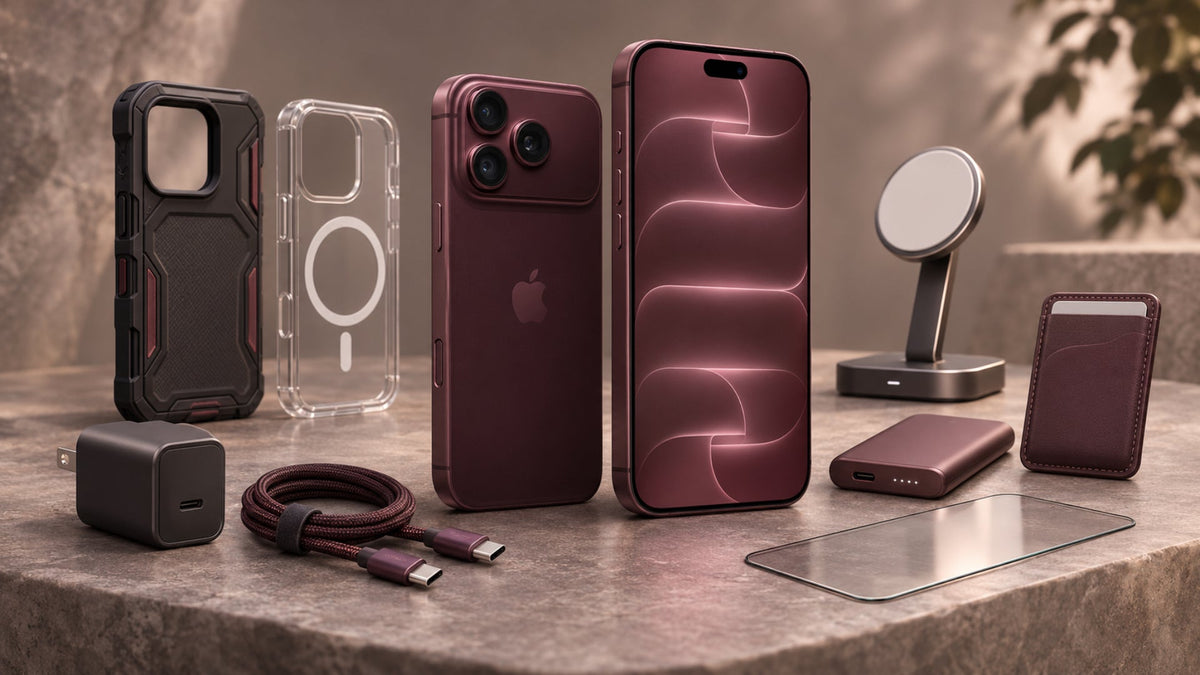
At Ghostek, we make iPhone 18 Pro cases with different levels of protection. The COVERT case for iPhone 18 Pro has a lightweight design and a clear back. It also has built-in MagSafe magnets, a raised lip around the camera lenses, and a lifted bumper to protect the screen. Its product page lists 8 ft drop testing.

If you want more drop protection, the ATOMIC Slim case for iPhone 18 Pro uses dual-layer aluminum construction with built-in MagSafe magnets and a raised camera lens perimeter. Its product page lists 12 ft drop testing. Both cases support wireless charging. Check each product page for current details on how the case works with the iPhone 18 Pro buttons.
Which iPhone 18 Pro Buttons Should You Set Up First?
Set up the Action button and Camera Control first, because they're the two iPhone 18 Pro buttons you can adjust to fit how you use the phone. Assign the Action button to the feature you use most. If single clicks open Camera more often than you'd like, switch Camera Control to double-click.
Then choose a case that fits this exact model, so every button stays easy to press. You can compare options in our iPhone 18 Pro cases collection.
FAQ
How do you turn the iPhone 18 Pro back on?
Press and hold the Side button by itself until the Apple logo appears. If you've just turned the phone off, Apple says it takes about 30 seconds to shut down fully, so wait for that first. You don't need a volume button to turn the phone on.
Does the iPhone 18 Pro Side button have Touch ID?
No, the Side button doesn't read fingerprints. The iPhone 18 Pro uses Face ID, which Apple's tech specs list as enabled by TrueDepth technology in the front camera. You unlock the phone by looking at it, and the Side button handles locking, waking, and Siri.
Can Camera Control open an app other than Camera?
Yes, you can set Camera Control to open another app that uses the camera. Apple's iPhone User Guide explains how to make this change. Until you change it, a click opens Apple's built-in Camera app. This option is useful if you take most of your photos in another app.
Can you lock focus and exposure with Camera Control?
Yes, you can turn on Lock Focus and Exposure in Settings > Camera > Camera Control. Apple's Camera Control guide lists this option in the same menu where you choose whether a single or a double click opens Camera. That way, you can set up both options in one place.
What happens if you press the Side button five times?
Pressing the Side button five times starts an Emergency SOS call, but only if you've turned on Call with 5 Button Presses in Settings > Emergency SOS. If that setting is off, start Emergency SOS by holding the Side button and either volume button until the countdown ends.


Leave a comment
This site is protected by hCaptcha and the hCaptcha Privacy Policy and Terms of Service apply.